Image-to-Video Motion: Animate a Still Without Losing the Main Idea
A still image already makes many visual decisions: subject, composition, color and lighting. When turning it into a video, the important new question is what changes over time. A restrained movement can communicate more clearly than a dramatic request that distorts the scene. This guide offers an original planning workflow based on mode-specific official references reviewed for October 18, 2026. It does not claim a tool can preserve every pixel or accurately invent details hidden outside the original image.
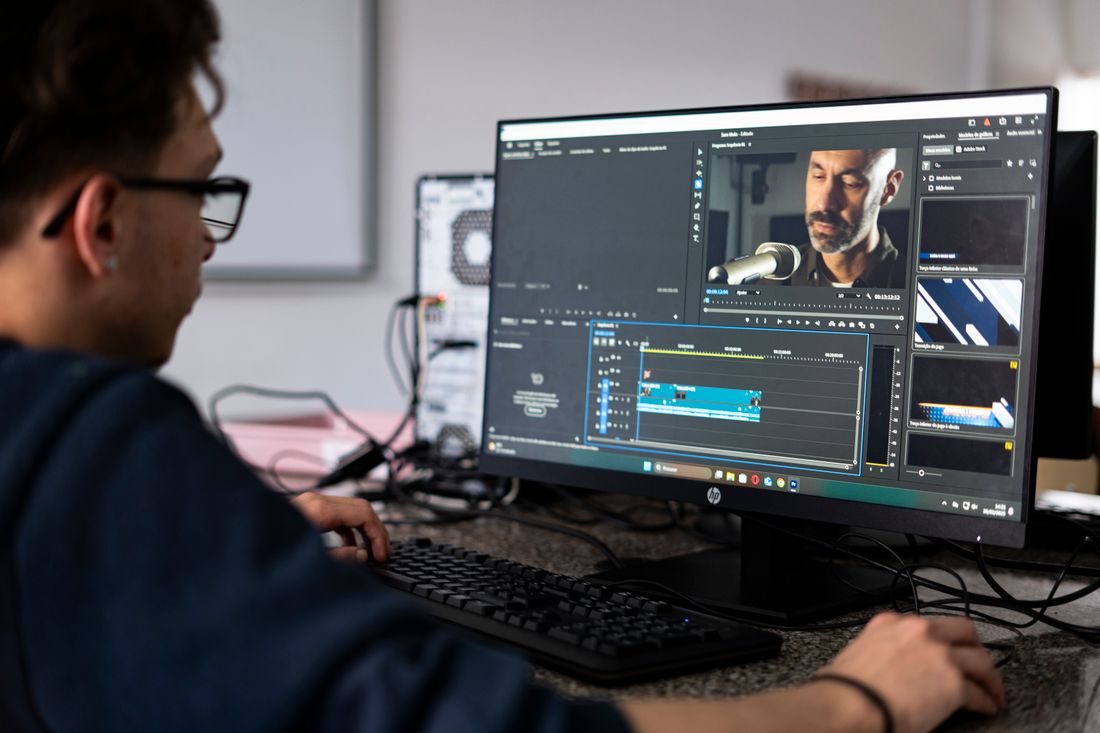
Photo: André Eusébio · License. Illustrative stock photography.
Inspect the source before asking it to move
Use an image you are permitted to upload and transform. Check it at normal viewing size for unclear hands, duplicated objects, unreadable labels and ambiguous edges. Motion can make an existing defect more noticeable rather than repair it. Identify the main subject and the area that must stay recognizable. A clean photograph of an unbranded ceramic cup is a simpler starting exercise than a crowded group portrait. Keep the original file and record any crop or edit so you can return to the approved visual instead of repeatedly using altered derivatives.
Separate three kinds of movement
Write a short note for subject movement, environmental movement and camera movement. For a cup beside a window, the cup might remain still, a curtain might move lightly, and the camera might remain fixed. This separation helps expose conflicting directions before you spend credits. Runway's image-to-video documentation distinguishes motion components and treats the input as important visual guidance. Translate that into your own shot plan rather than copying every component into every prompt. It is acceptable for two of the three movement categories to stay quiet.
Choose movement supported by the visible information
A still front view gives little reliable information about a subject's hidden back or an object's unseen side. A large orbit may require the model to invent those details. Decide whether that invention is acceptable for a fictional scene or unacceptable for a real product presentation. Smaller changes, such as a slight head turn or a gentle camera move, can reduce how much unseen material the shot demands, but they are not a guarantee of identity. If exact geometry matters, use actual filmed footage or a controlled three-dimensional production instead.
Use an original small-action prompt
For an authorized still of a small plant near a bright window, try a brief such as: The leaves sway gently as a soft breeze passes through the room. The camera stays in a fixed medium view. Light remains soft and steady. The prompt focuses on a visible, limited change. It does not restate every leaf color or introduce a second location. Treat it as an experiment to inspect, not a tested recipe. If the model changes the pot shape, record that mismatch rather than calling the shot successful because the overall mood looks attractive.
Check temporal stability, not only the first frame
Watch the complete clip at normal speed, then inspect the beginning, middle, end and any moment where movement changes. Check whether outlines, faces, object counts, shadows and contact points remain plausible. A source image and a convincing opening frame cannot establish that the last half is usable. Compare the selected final trim with the original source. If a brief usable portion meets the edit's purpose, keep that decision explicit; do not imply that the whole generation passed review when only a few seconds were retained.
Move exact information into the edit
Add factual captions, product names and instructional labels in a conventional editor so they can be checked and corrected directly. Do not use a generated product demonstration as evidence of a real item's performance. Keep an accessible description of what the clip shows when that helps the audience, and follow the publishing platform's disclosure requirements for synthetic content. Store the source image, motion prompt and accepted output together. The repeatable result is a documented animation decision with known limitations, not a claim that still photography has become verified footage of an actual event.
Your working checklist
Checkmarks stay in this browser when storage is available. They do not submit a form or complete a booking.
Put it into practice
- Check the source image and name the subject or object that must remain recognizable.
- Plan subject, environment and camera movement separately, keeping the first attempt modest.
- Generate within the chosen tool's current image-to-video mode and review temporal changes.
- Trim only a genuinely usable segment and add exact information and disclosure in the final edit.
Before you finish
- Upload and transformation rights cover the source.
- The motion does not demand unverified hidden product details.
- Only necessary movement is requested.
- The whole retained segment has been reviewed.
- Generated motion is not described as real documentary evidence.
Common questions
Will the source image remain perfectly unchanged?
Do not assume that. Generative motion can alter details across time, so compare the retained clip with the approved source.
Should I describe the whole image again?
Follow the selected mode's guidance. Usually the useful new information is what happens over time, with extra visual detail added only when it resolves a real ambiguity.
Can I animate someone else's portrait?
Only when you have the relevant permission and the intended use is appropriate. A publicly visible image is not automatically cleared for transformation or publication.