Add Editable Text Over Generated Video Instead of Relying on the Scene
When words must be exact, treat them as an editable production layer. Generate the visual background separately, then add approved text in the editor so spelling, timing and future changes remain under direct control.
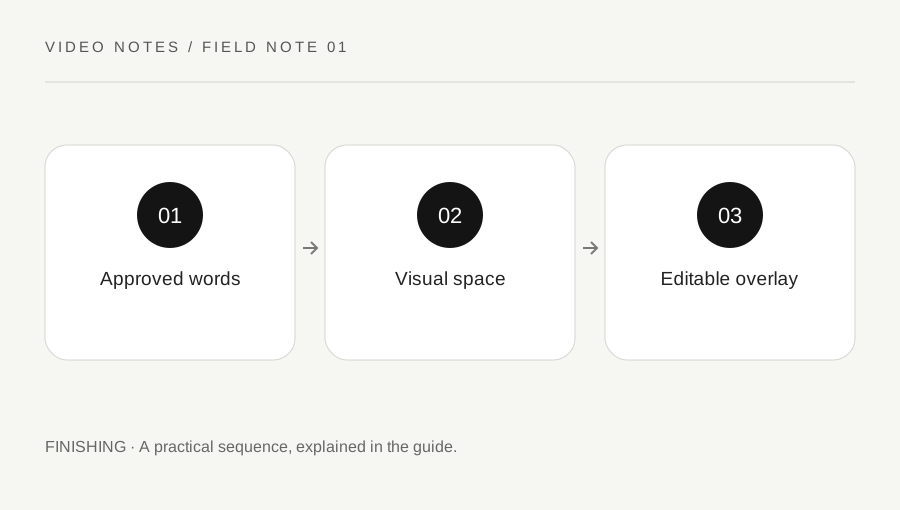
Original explanatory diagram. Examples illustrate a method or decision; they are not claims of personal testing.
Separate scene content from required wording
List every word the viewer must read: a title, a product name, a date, a price or a short instruction. Decide which belongs in an editable overlay and which is merely incidental scenery. A generated shop sign can change across frames; that is a poor foundation for a required business name or important instruction.
Write the final wording outside the generation prompt and have the appropriate content owner approve it. Keep punctuation and capitalisation deliberate. For an illustrative event clip, the approved date and venue belong in the text layer, while the generated scene can provide atmosphere. Do not make a visually convincing background carry information that must be exact.
Reserve a calm region in the visual
Plan where the text will sit before generating the shot. Request or compose a background with an uncluttered region, then inspect the actual result throughout the clip. An empty corner in the first frame may fill with moving detail later. Camera motion and changing light can make a previously readable position difficult.
Use a temporary text box in the edit to assess placement at the intended aspect ratio. If the image is busy everywhere, consider a simple backing panel or a different crop rather than shrinking the words. Do not assume a prompt mentioning negative space guarantees it. The output still needs a frame-by-frame review around the text area.
Build the overlay in a supported editor
Use the editor text tools to enter the approved wording as a separate layer. Adobe documents text layers in its Firefly video editor, including positioning, properties and timeline duration. Other editors have their own supported workflow. Keep the layer editable rather than baking it into an intermediate image unnecessarily.
Choose a small set of type styles and a readable contrast arrangement. Check whether the selected font is available and permitted in the production context. Do not stretch letters to fill an arbitrary box. If a logo is needed, use the approved asset and its usage guidance instead of recreating it from generated lettering.
Review reading time and changing frames
Play the clip at normal speed on the expected viewing device. Ask whether a viewer has time to read the words while also understanding the visual. A short headline and a detailed instruction need different durations. Avoid claiming a universal reading-speed formula will fit every audience and language.
For an illustrative five-second clip, test one short headline first. If a second sentence cannot be read comfortably, split the information into another shot or simplify the wording with approval. Check the first and last frames where text appears for accidental flashes. Review the actual export as well as the editor preview, because scaling and compression can affect small type.
Keep versions and accessibility connected
Store the approved copy, editable project and final export together with clear version names. If a date changes, update the source layer and regenerate the export rather than placing a patch over an old final. Review every aspect-ratio variant because a safe position in a horizontal frame may collide with a vertical crop or platform interface.
Essential information should also be available through an appropriate accessible route, such as narration, captions where relevant and supporting page text. An on-screen title alone does not meet every viewer need. Check the final destination guidance and keep the text production record small enough that another editor can identify the approved wording without searching every generation attempt.
A practical checklist
Choices are saved in this browser. Reset them here or clear this site’s browser storage.
Questions that come up
Can the model generate the title for me?
It may produce scene lettering, but exact required wording is easier to verify and revise as a separate editable layer.
Should I shrink text until it fits?
Reconsider the wording, duration or layout first. Fitting a box is not the same as being readable.
Does an overlay replace captions?
No. Titles and accessible captions serve different purposes. Plan the necessary accessible information for the final video.
References & scope
Background references checked on 18 October 2026. Worked examples and diagrams are original teaching material.